Linux
Which one do I need?
- Running Fedora? Use Fedora (Copr), it keeps Pelton updated through
dnf. - Running Debian, Ubuntu, or a derivative? Use Debian / Ubuntu (.deb).
- Running Arch or a derivative? Use Arch (AUR).
- On an RPM-based distro that isn't Fedora? Use Generic RPM.
- Use Nix if you manage your system (or just your packages) with Nix.
- Anything else, or you'd rather not install system-wide? Use the Generic binary.
Fedora
Checklist
- Enable the Copr repo
- Install Pelton
- Go through onboarding
- Add your first mailbox
Installation
Pelton is packaged for Fedora through Copr,
Fedora's community repo host. Enabling it adds Pelton's repo to dnf, so future
releases show up as normal updates.
- Enable the Copr repo
- Install Pelton
Pelton will now start. Go through the Onboarding wizard. To add your first mailbox, see Setting up a mailbox.
Debian / Ubuntu (.deb)
Checklist
- Download the
.deb - Verify SHA-256 Checksum
- Install the
.deb - Go through onboarding
- Add your first mailbox
Installation
1. Download
Download the .deb from
pelton.app/download
or from
GitHub Releases
- Download the
.deb
Verify Checksum
It's highly recommended to verify the Checksum (SHA-256 hash) of the file you've downloaded.
The download page gives you a ready-to-run verify command next to the install command:
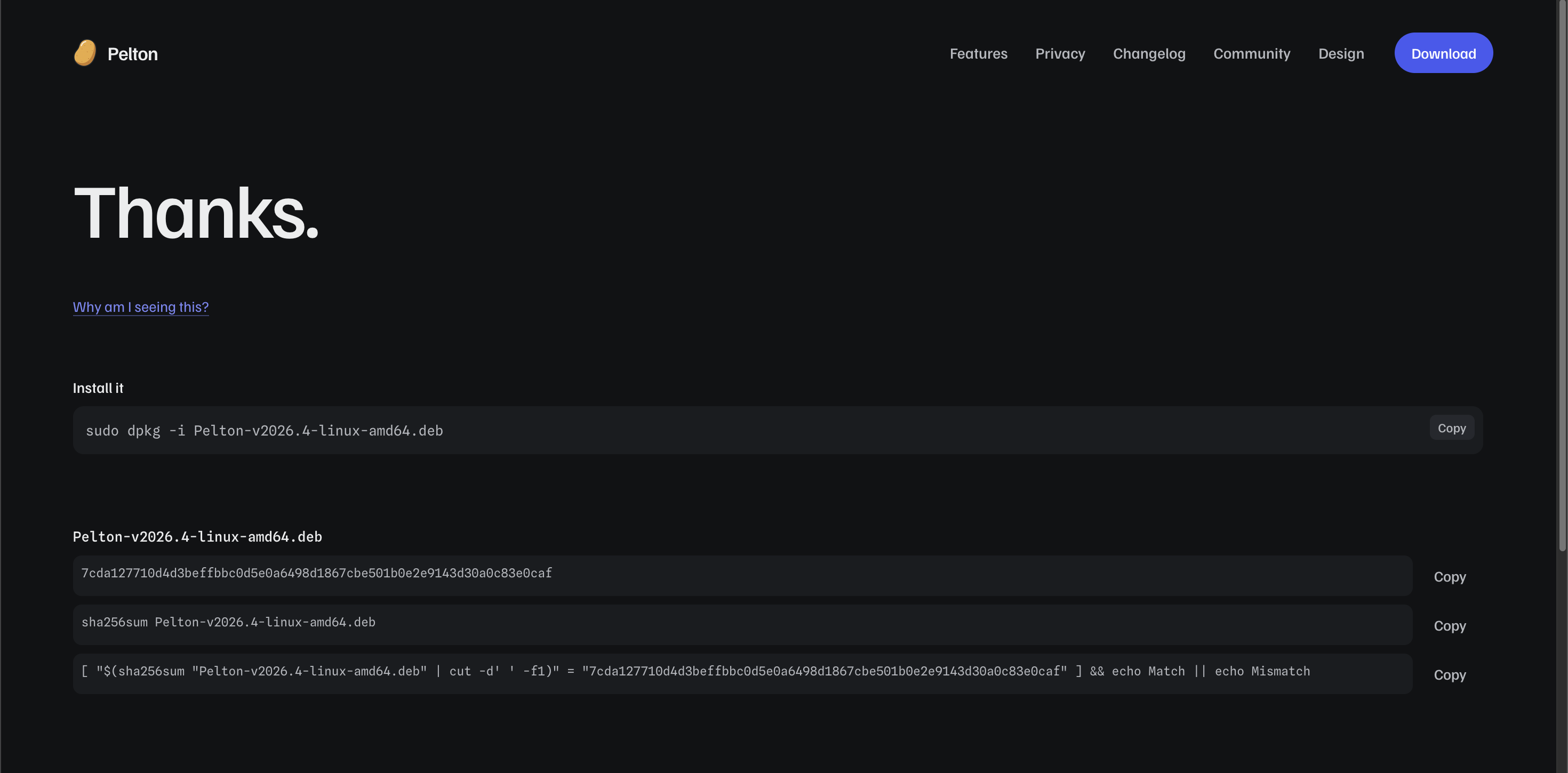
Open your Terminal and navigate to your downloads folder (cd ~/Downloads), then run the
sha256sum ... && echo Match || echo Mismatch command from the page.
If it says Match then you can proceed with the installation and everything is fine.
If it says Mismatch then the file got corrupted or was tampered with. Do not proceed. You can try repeating the download.
- Verify SHA-256 Checksum
2. Install
- Install the
.deb
Pelton will now start. Go through the Onboarding wizard. To add your first mailbox, see Setting up a mailbox.
Arch (AUR)
Checklist
- Install from the AUR
- Go through onboarding
- Add your first mailbox
Installation
Pelton is available on the AUR
as pelton-bin, thanks to leeteral (AUR Maintainer)
(GitHub). Install it with your AUR helper of choice:
pelton-bin is maintained separately from Pelton's own release pipeline, so
it can lag behind a brand new release while the package gets bumped, usually
by just a few hours. You can check its current status on
Repology, which tracks
Pelton's packaging across distros and package managers.
- Install from the AUR
Pelton will now start. Go through the Onboarding wizard. To add your first mailbox, see Setting up a mailbox.
Generic RPM
Checklist
- Download the
.rpm - Verify SHA-256 Checksum
- Install the
.rpm - Go through onboarding
- Add your first mailbox
Installation
If you're not on Fedora but still want a native RPM install (or don't want to add the Copr
repo), you can install the .rpm directly.
1. Download
Download the .rpm from
pelton.app/download
or from
GitHub Releases
- Download the
.rpm
Verify Checksum
It's highly recommended to verify the Checksum (SHA-256 hash) of the file you've downloaded.
The download page gives you a ready-to-run verify command next to the install command:
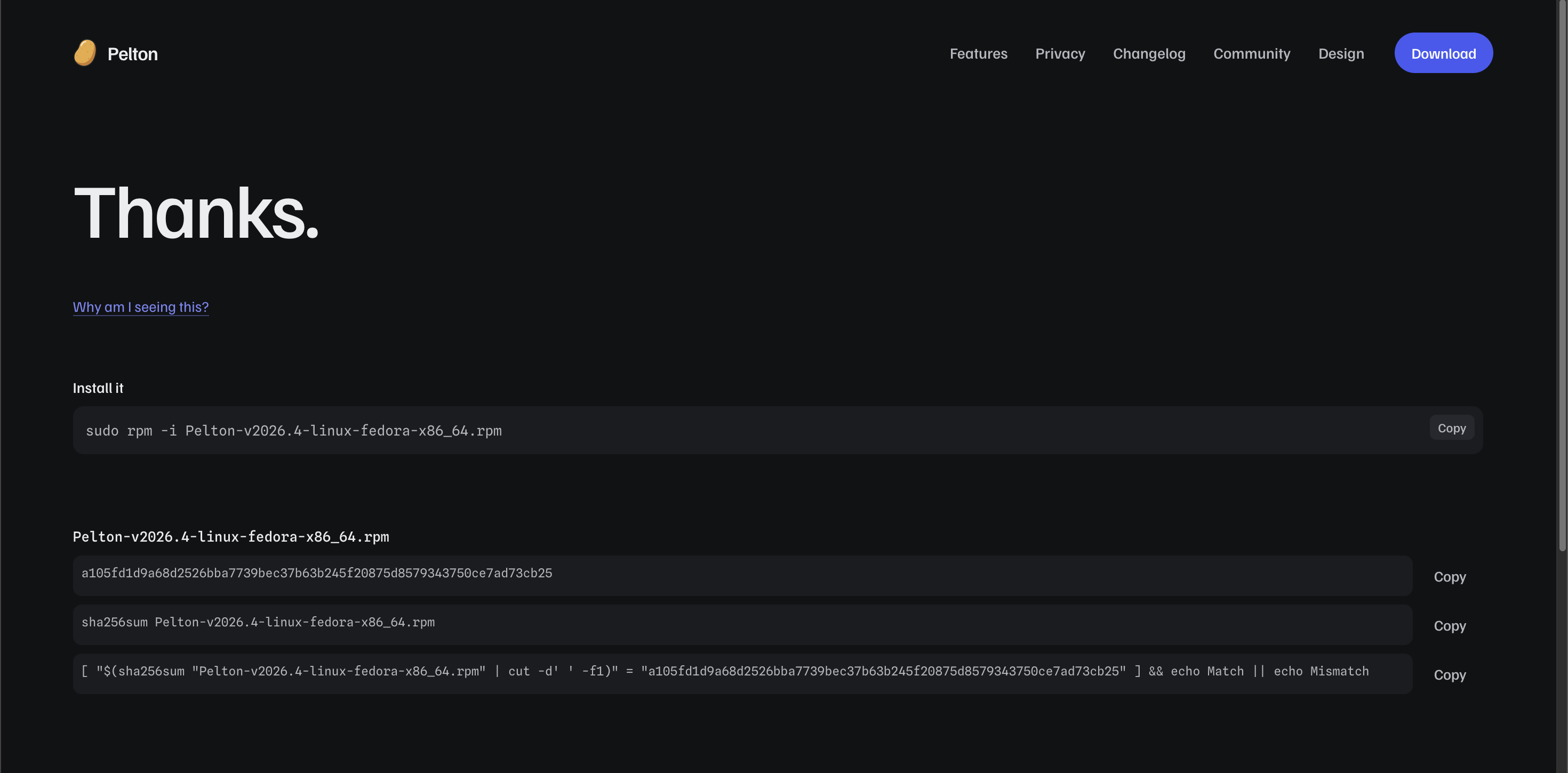
Open your Terminal and navigate to your downloads folder (cd ~/Downloads), then run the
sha256sum ... && echo Match || echo Mismatch command from the page.
If it says Match then you can proceed with the installation and everything is fine.
If it says Mismatch then the file got corrupted or was tampered with. Do not proceed. You can try repeating the download.
- Verify SHA-256 Checksum
2. Install
- Install the
.rpm
Pelton will now start. Go through the Onboarding wizard. To add your first mailbox, see Setting up a mailbox.
Generic binary
Checklist
- Download the binary
- Verify SHA-256 Checksum
- Make it executable and run it
- Go through onboarding
- Add your first mailbox
Installation
No package manager, no sudo: just a raw binary. Useful on distros without .deb/.rpm
support, or if you'd rather run Pelton without installing it system-wide.
1. Download
Download the binary from pelton.app/download or from GitHub Releases
- Download the binary
Verify Checksum
It's highly recommended to verify the Checksum (SHA-256 hash) of the file you've downloaded.
The download page gives you a ready-to-run verify command next to the run command:
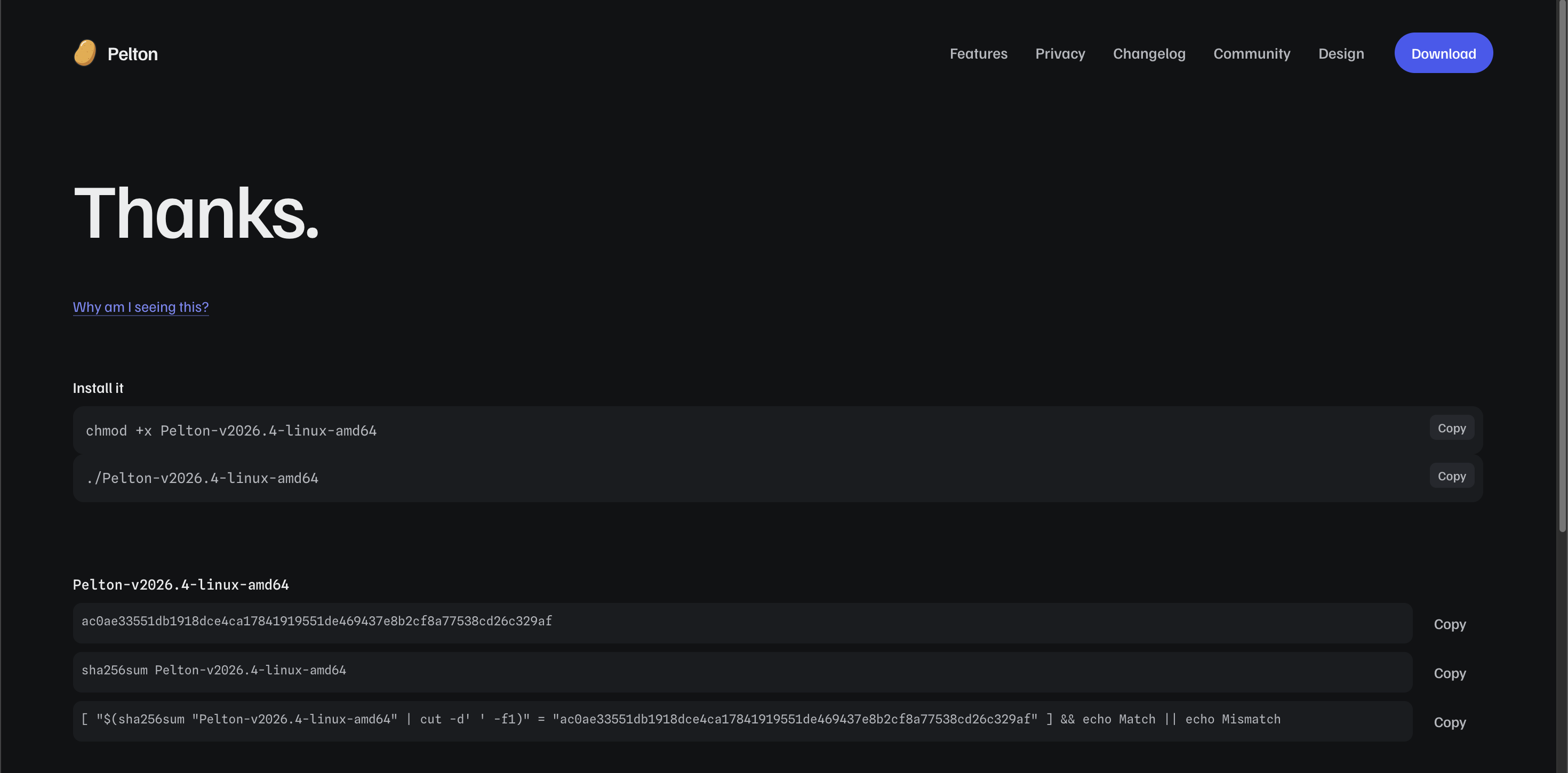
Open your Terminal and navigate to your downloads folder (cd ~/Downloads), then run the
sha256sum ... && echo Match || echo Mismatch command from the page.
If it says Match then you can proceed with the installation and everything is fine.
If it says Mismatch then the file got corrupted or was tampered with. Do not proceed. You can try repeating the download.
- Verify SHA-256 Checksum
2. Run it
- Make it executable and run it
Pelton will now start. Go through the Onboarding wizard. To add your first mailbox, see Setting up a mailbox.
Nix
Checklist
- Run or install via the flake
- Go through onboarding
- Add your first mailbox
Installation
Pelton ships a flake. Point it at a release tag, not the bare repo:
Or install it into your profile:
- Run or install via the flake
Note
Linux only for now.
Pelton will now start. Go through the Onboarding wizard. To add your first mailbox, see Setting up a mailbox.
Need help?
See Support.