macOS
Checklist
- Download DMG
- Verify SHA-256 Checksum
- Install using DMG
- Allow in Settings (Gatekeeper)
- Go through onboarding
- Add your first mailbox
Installation
1. Download
Download the installer from pelton.app/download or from GitHub Releases
- Download DMG
Portable Installations and Package Managers (Homebrew)
Portable .app's are not yet available but are in the works:
#377.
Until then, a workaround would be either:
- Build Pelton from source
- Install Pelton and grab the
.appfrom the Applications directory.
Installing using Homebrew is not yet supported.
Verify Checksum
It's highly recommended to verify the Checksum (SHA-256 hash) of the file you've downloaded.
What is a checksum verification?
Verifying the checksum means comparing a hash, a short fingerprint calculated from the file's contents, against the one Pelton publishes, so you can confirm the download wasn't corrupted or tampered with in transit.
How to verify
When downloading from pelton.app/download, you will get a command which will
verify the checksums: 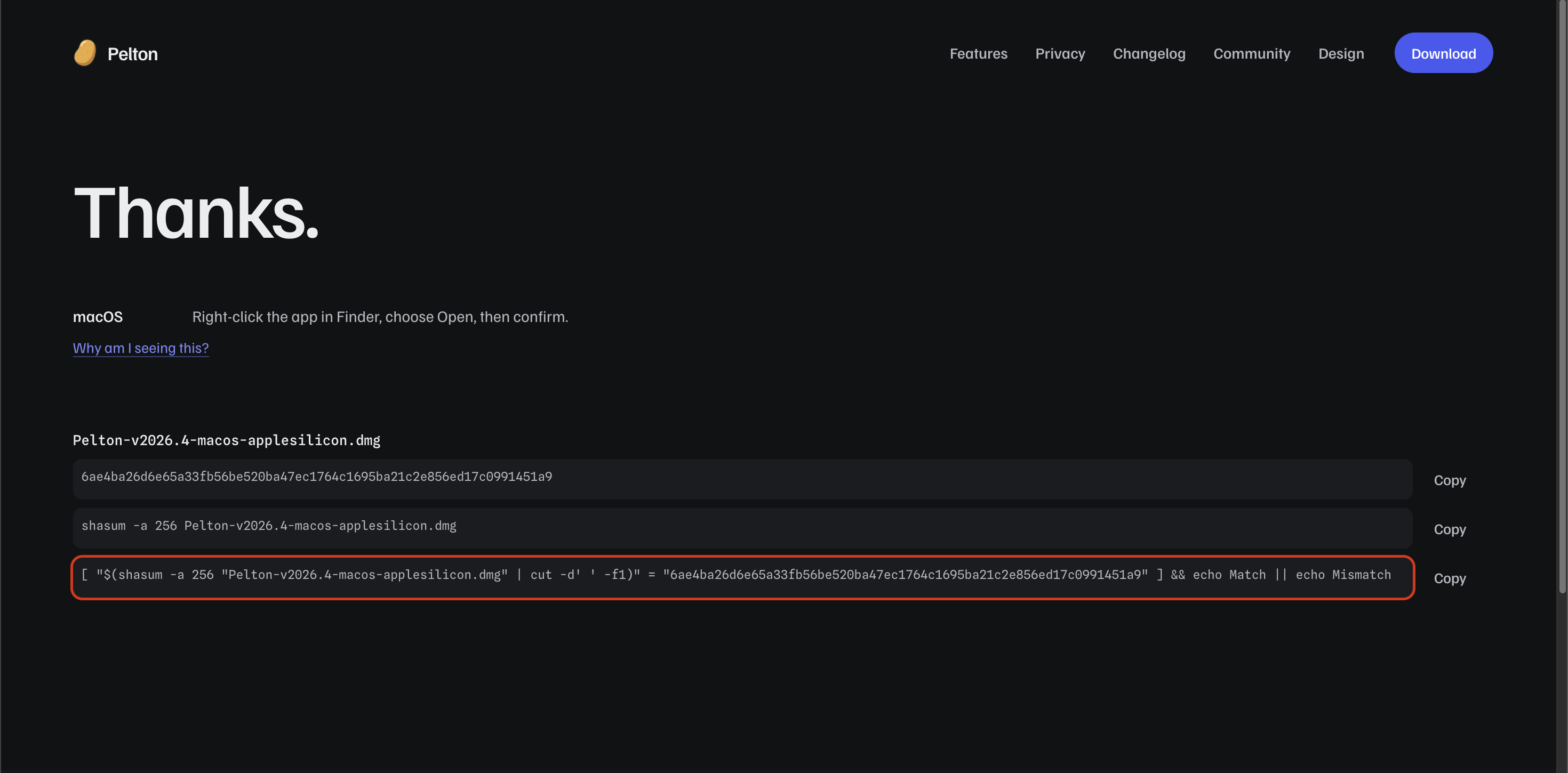 To run it, open your Terminal (Cmd+Space, type
 terminal, Enter) and navigate to
your downloads folder using cd ~/Downloads. Then run the command from the website.
If it says Match then you can proceed with the installation and everything is fine.
If it says Mismatch then the file got corrupted or was tampered with. Do not proceed. You can try repeating the download,
or reach out for help if it keeps happening.
- Verify SHA-256 Checksum
2. Installing Pelton
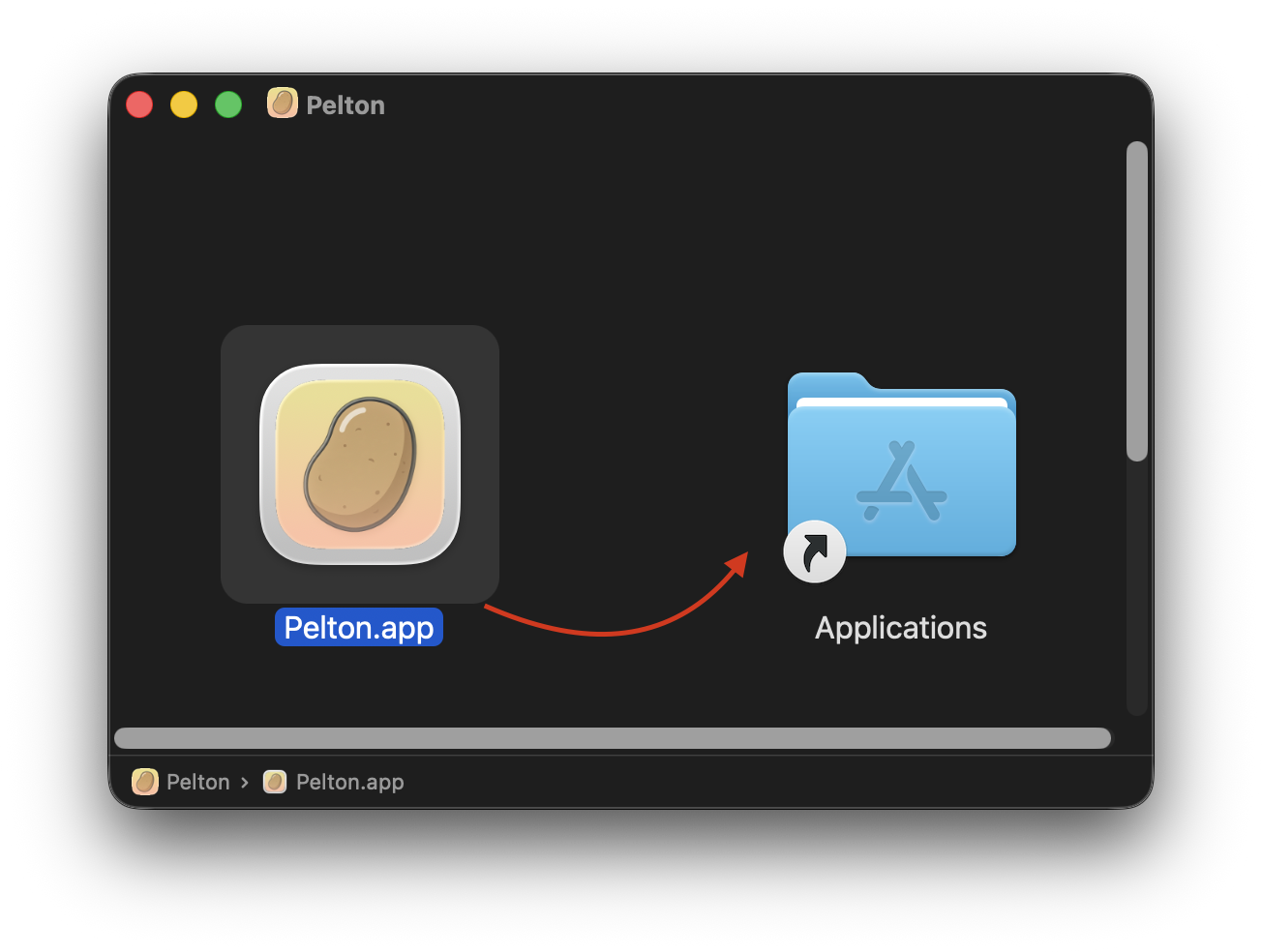
Run the newly downloaded file. The filename should look something like this: Pelton-<VERSION>-macos-<applesilicion/intel>.dmg.
Double click it and drag the App into the Applications folder.
- Install using DMG
Then launch the App (Using Cmd+Space and typing Pelton or checking the App Library).
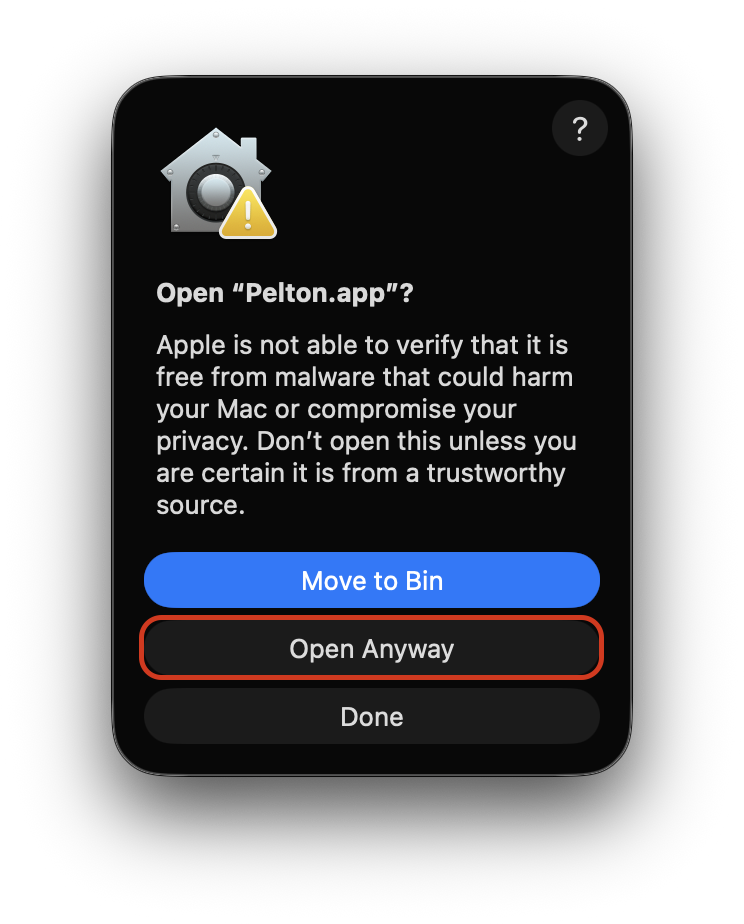
You will probably run into Gatekeeper not allowing you to run Pelton. It might look something like this:
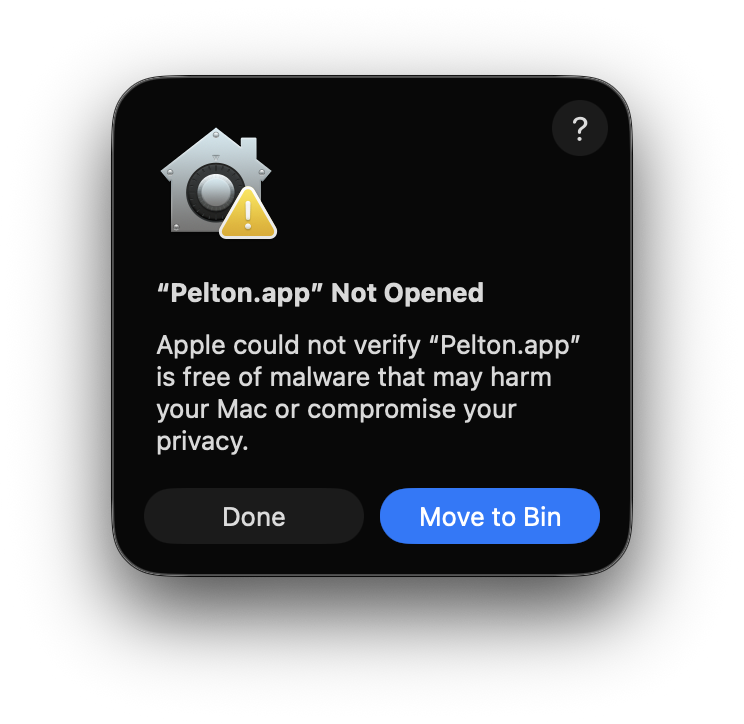
Why is macOS not allowing Pelton to run?
macOS only allows apps signed and notarized by Apple to open without a warning. Notarization requires an Apple Developer Program membership, which costs money every year.
This is going to be fixed in the future, see #97.
To allow Pelton to run, hit Done. Then launch System Settings and navigate to Privacy & Security.
Scroll down until you see Pelton and the Open Anyway button. Press it.
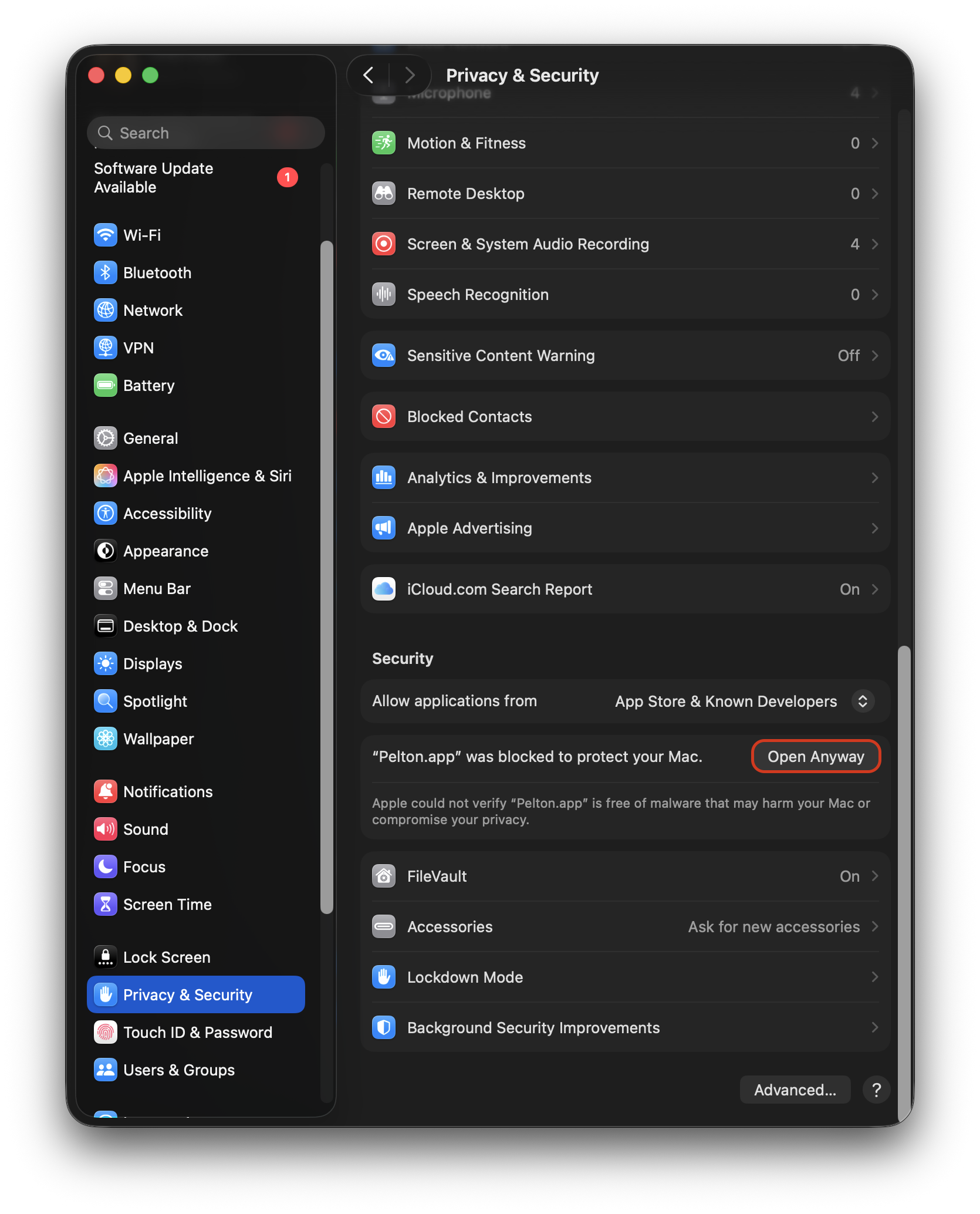
Then hit Open Anyway again. You may be asked to confirm with your password or Touch ID.
- Allow in Settings (Gatekeeper)
Pelton will now start. Go through the Onboarding wizard. To add your first mailbox, see Setting up a mailbox.
Need help?
See Support.