Windows
Checklist
- Download Installer
- Verify SHA-256 Checksum
- Run Installer
- Allow through SmartScreen
- Launch Pelton
- Go through onboarding
- Add your first mailbox
Installation
1. Download
Download the installer from pelton.app/download or from GitHub Releases
- Download Installer
Portable Installations and Package Managers (Winget/Chocolatey)
Every release also ships a portable build, named
Pelton-<VERSION>-windows-amd64-portable.exe. It is the same executable the
installer wraps, just on its own: Pelton is a single file, so the installer
only adds the Start Menu and Desktop shortcuts and the entry in
Add or remove programs.
Put it wherever you like, a USB stick included, and run it. Nothing is installed and nothing is registered.
Portable means the app, not your mail
Your mailboxes, messages and settings live in %APPDATA%\Pelton, in the
Windows profile of whoever runs it, not next to the .exe. Carrying
the file to another machine gives you Pelton there, not your mail, and
deleting the file leaves that data behind. To remove it as well, delete
%APPDATA%\Pelton too.
To update a portable install, download the newer .exe and replace the old
one. There is nothing to uninstall first, and your mail is untouched because
it was never in that file.
Pelton is not yet in the Chocolatey or Winget registry. However, this will be done in the future. See #376
Verify Checksum
It's highly recommended to verify the Checksum (SHA-256 hash) of the file you've downloaded.
What is a checksum verification?
Verifying the checksum means comparing a hash, a short fingerprint calculated from the file's contents, against the one Pelton publishes, so you can confirm the download wasn't corrupted or tampered with in transit.
How to verify
When downloading from pelton.app/download, you will get commands which will
verify the checksum: 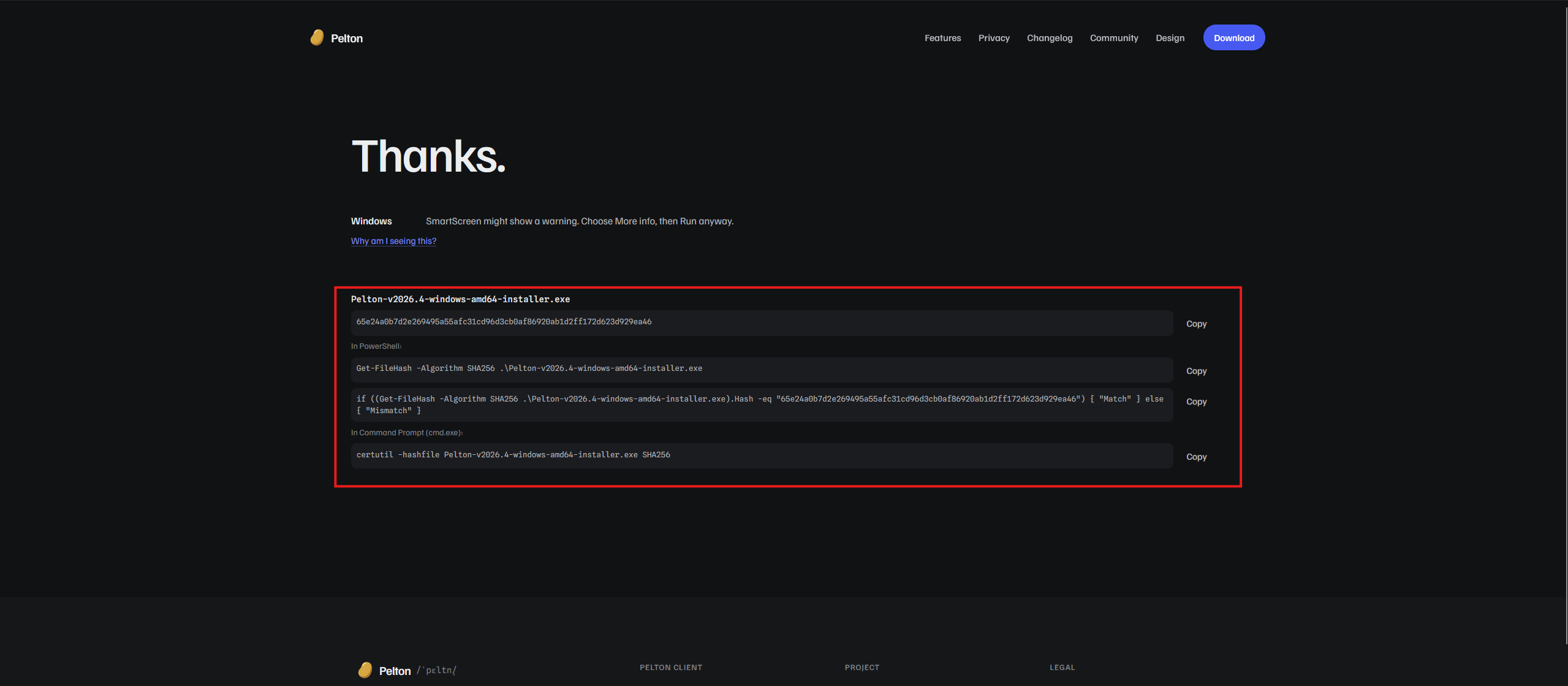 To run one, open PowerShell or Command Prompt, navigate to your downloads folder with
cd $env:USERPROFILE\Downloads (PowerShell) or cd %USERPROFILE%\Downloads (Command Prompt), then run the
command from the website.
If it says Match then you can proceed with the installation and everything is fine.
If it says Mismatch then the file got corrupted or was tampered with. Do not proceed. You can try repeating the download,
or reach out for help if it keeps happening.
- Verify SHA-256 Checksum
2. Installing Pelton
Run the downloaded file. The filename should look something like this: Pelton-<VERSION>-windows-amd64-installer.exe.
- Run Installer
You will probably run into SmartScreen not allowing you to run Pelton. It might look something like this:
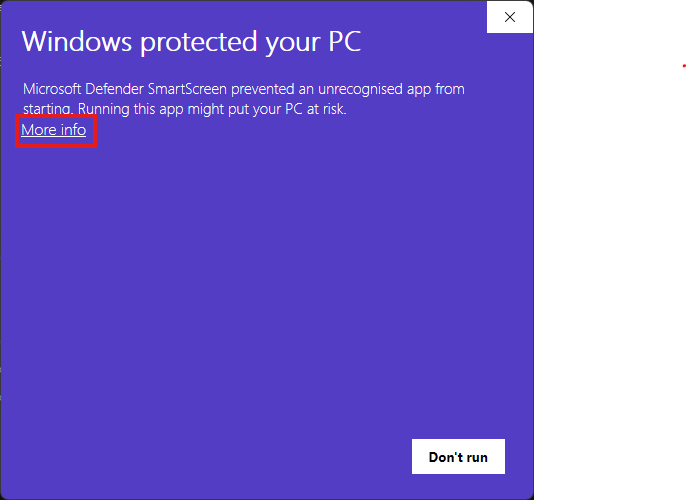
Why is SmartScreen not allowing Pelton to run?
SmartScreen flags any app it doesn't yet recognize as coming from a trusted publisher. Code-signing certificates that satisfy SmartScreen cost money every year, and enough people need to run the app before SmartScreen starts trusting it automatically.
Click More info, then click Run anyway:
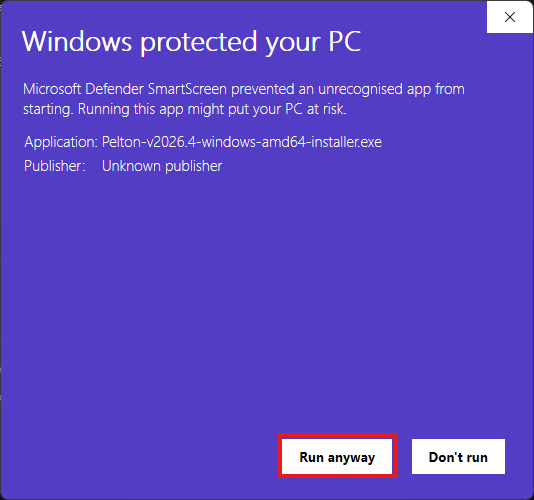
- Allow through SmartScreen
Pelton will now start. Go through the Onboarding wizard. To add your first mailbox, see Setting up a mailbox.
Need help?
See Support.