Setting up a mailbox
To manage your mailboxes, open Settings (Cmd+,Ctrl+,, or Pelton > Settings from the menu bar) and go to Accounts in the sidebar. Accounts can be edited, added, or removed there.
To add a mailbox faster, press Cmd+MCtrl+M instead.
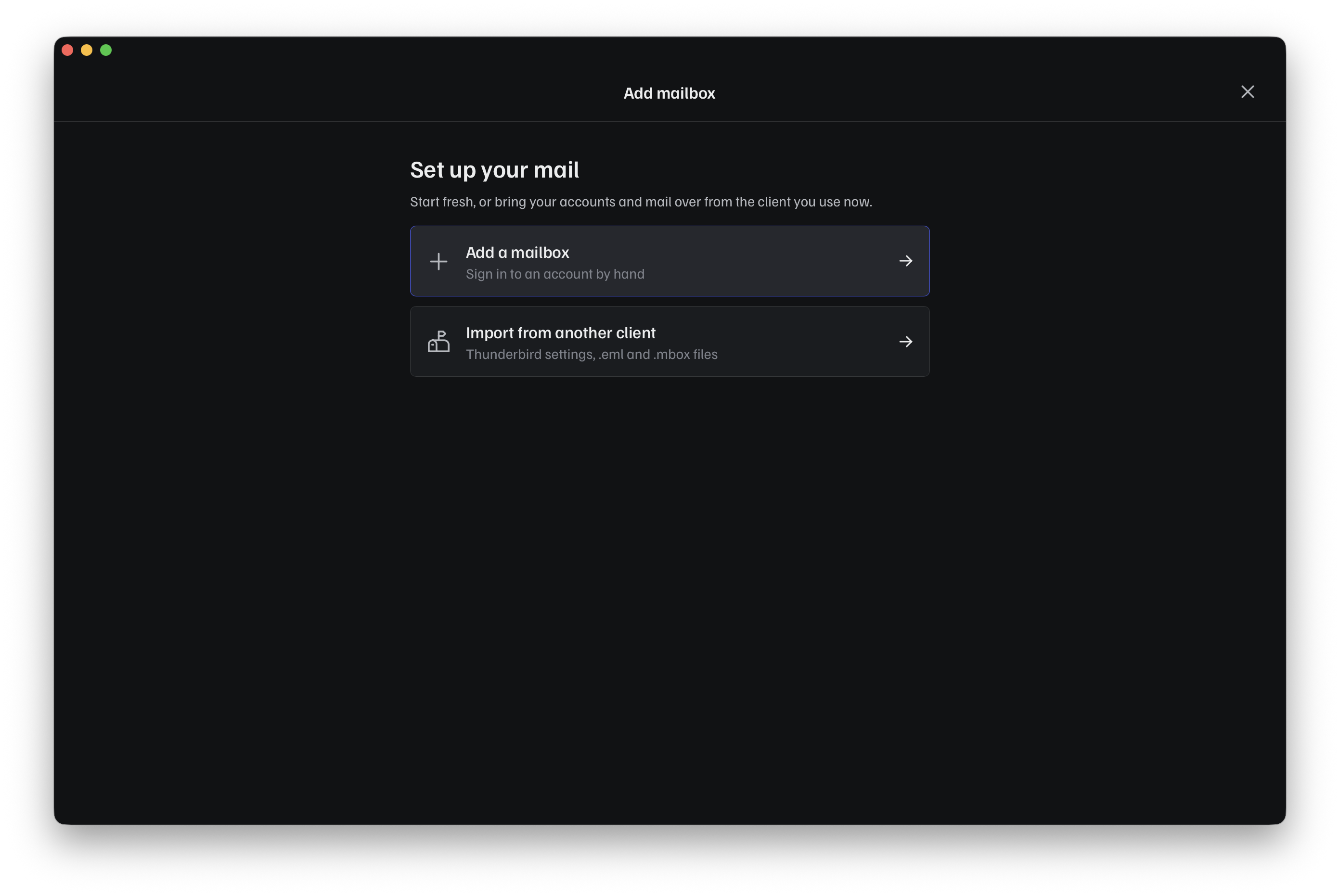
Adding a mailbox starts with a choice between setting up a fresh account or importing one from another client:
Choosing Add a mailbox shows the provider picker:
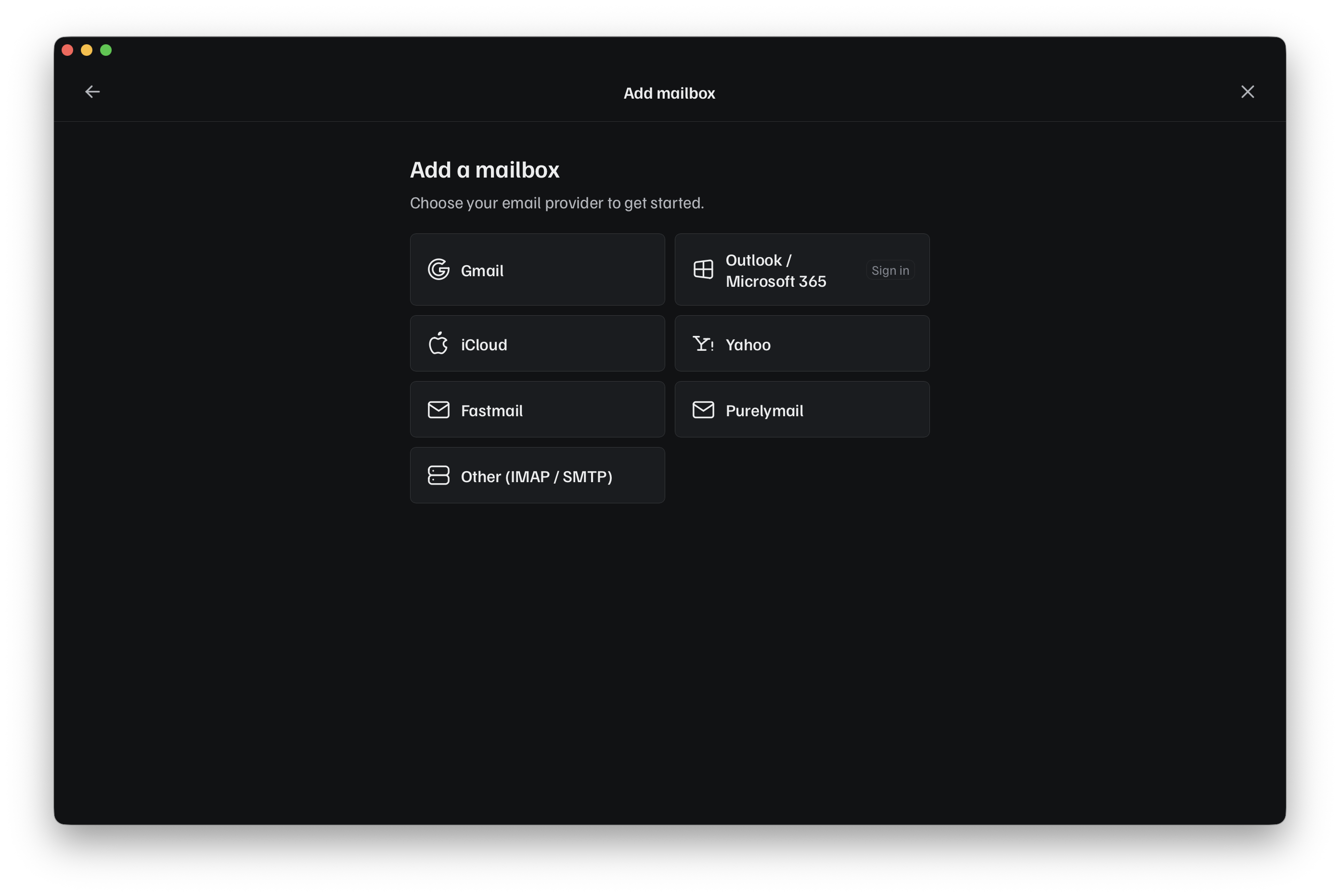
Pick your provider:
-
Gmail
-
iCloud
-
Outlook
-
Purelymail
-
Fastmail
-
Yahoo
-
Generic IMAP/SMTP
-
Importing from Thunderbird
Which one do I need?
- Using a
@gmail.com,@googlemail.comor Google Workspace address? Use Gmail. - Using an
@icloud.com,@me.com, or@mac.comaddress? Use iCloud. - Using an
@outlook.com,@hotmail.com, or Microsoft 365 address? Use Outlook. - Moving your accounts and mail over from Thunderbird? Use Importing from Thunderbird.
- Using Purelymail, Fastmail, or Yahoo Mail? Pick that provider's tile in the picker. Pelton pre-fills the IMAP/SMTP settings for you; see Generic IMAP/SMTP for details.
- Anything else, self-hosted, or a work server your IT team gave you settings for? Use Generic IMAP/SMTP.
Need help?
See Support.