Generic IMAP/SMTP
Use this if your provider isn't Gmail, iCloud, or Outlook, for example a work/school account, a self-hosted mail server, or any other provider that gives you IMAP and SMTP settings directly.
Yahoo, Fastmail, and Purelymail also use this same flow. Their tiles in the provider picker aren't a separate integration, they just pre-fill the IMAP/SMTP hostnames and ports for you so you don't have to look them up. See Provider presets below.
Checklist
- Gather your server settings
- Add the account in Pelton
- Test sending and receiving
Before you start
You'll need the following from your provider or IT department:
- Your email address and password (or an app-specific password, if your provider requires one for third-party mail clients)
- IMAP server hostname and port (commonly
993) - SMTP server hostname and port (commonly
465, sometimes587) - Whether IMAP/SMTP use SSL/TLS or STARTTLS
Where do I find my IMAP/SMTP hostnames?
Your provider's support site has the definitive answer. Search for
"<your provider> IMAP settings", and look for a page aimed at setting
up a third-party mail client (it's often filed under "desktop app" or
"other mail app" setup, not the provider's own app). Work/school and
self-hosted accounts usually get these settings from whoever
administers the mail server instead.
No POP3 support
Pelton only supports IMAP, not POP3. If your provider's settings page gives you a choice, make sure you're looking at the IMAP settings.
- Gather your server settings
Adding the account
-
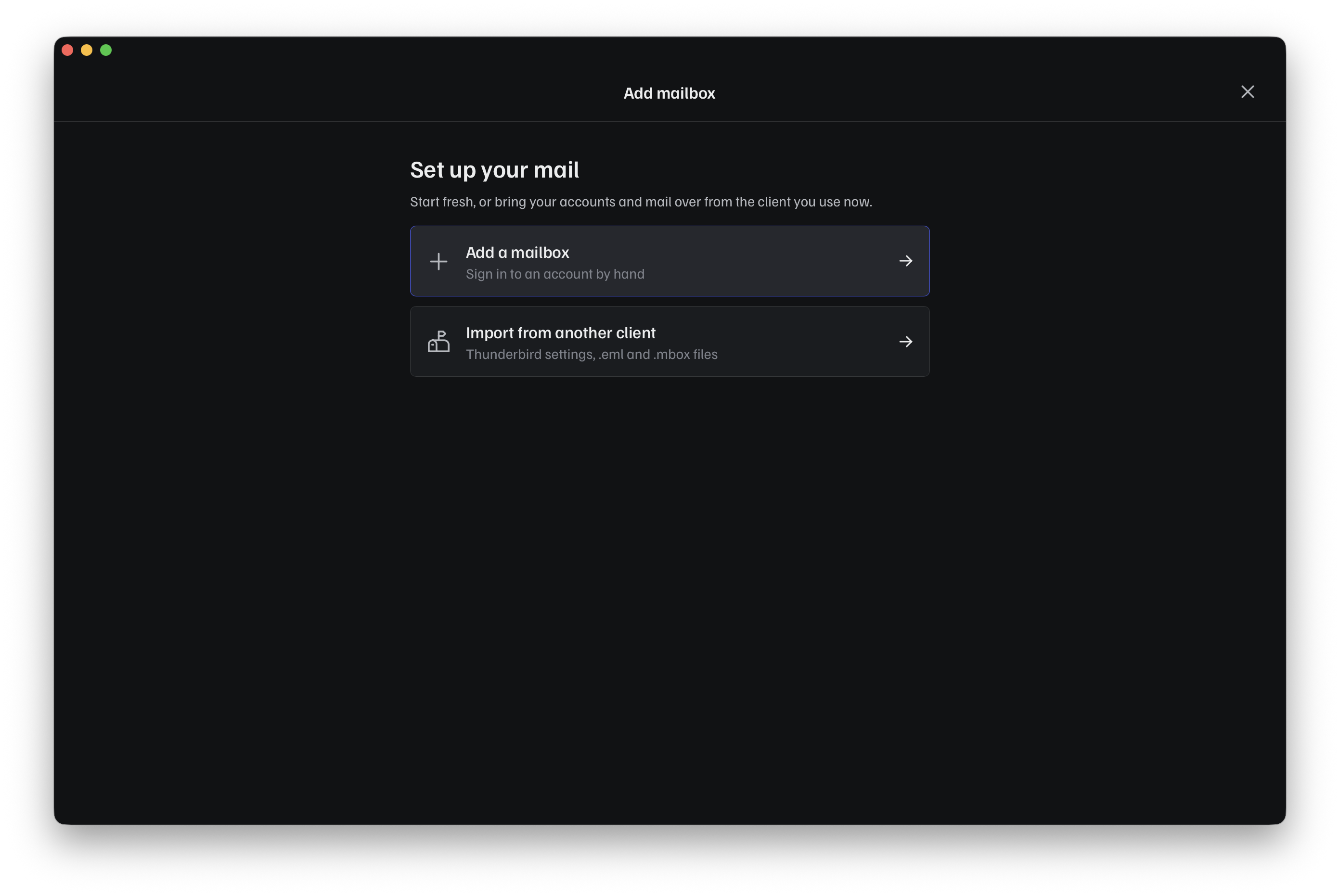
Open Add mailbox and choose Add a mailbox:
-
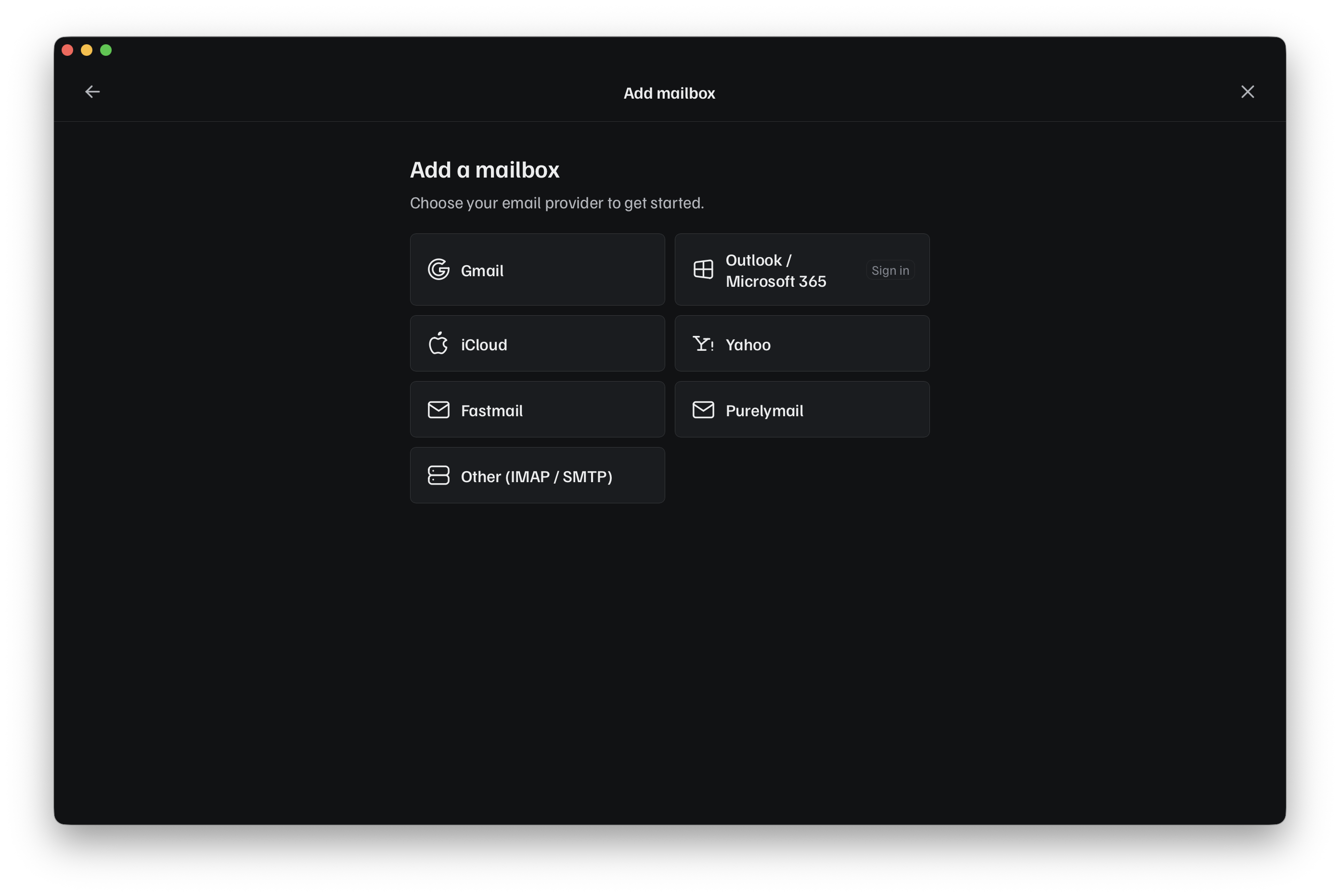
Pick Other (IMAP / SMTP) from the provider list:
-
Fill in your Email, From name, and Password (or app password).
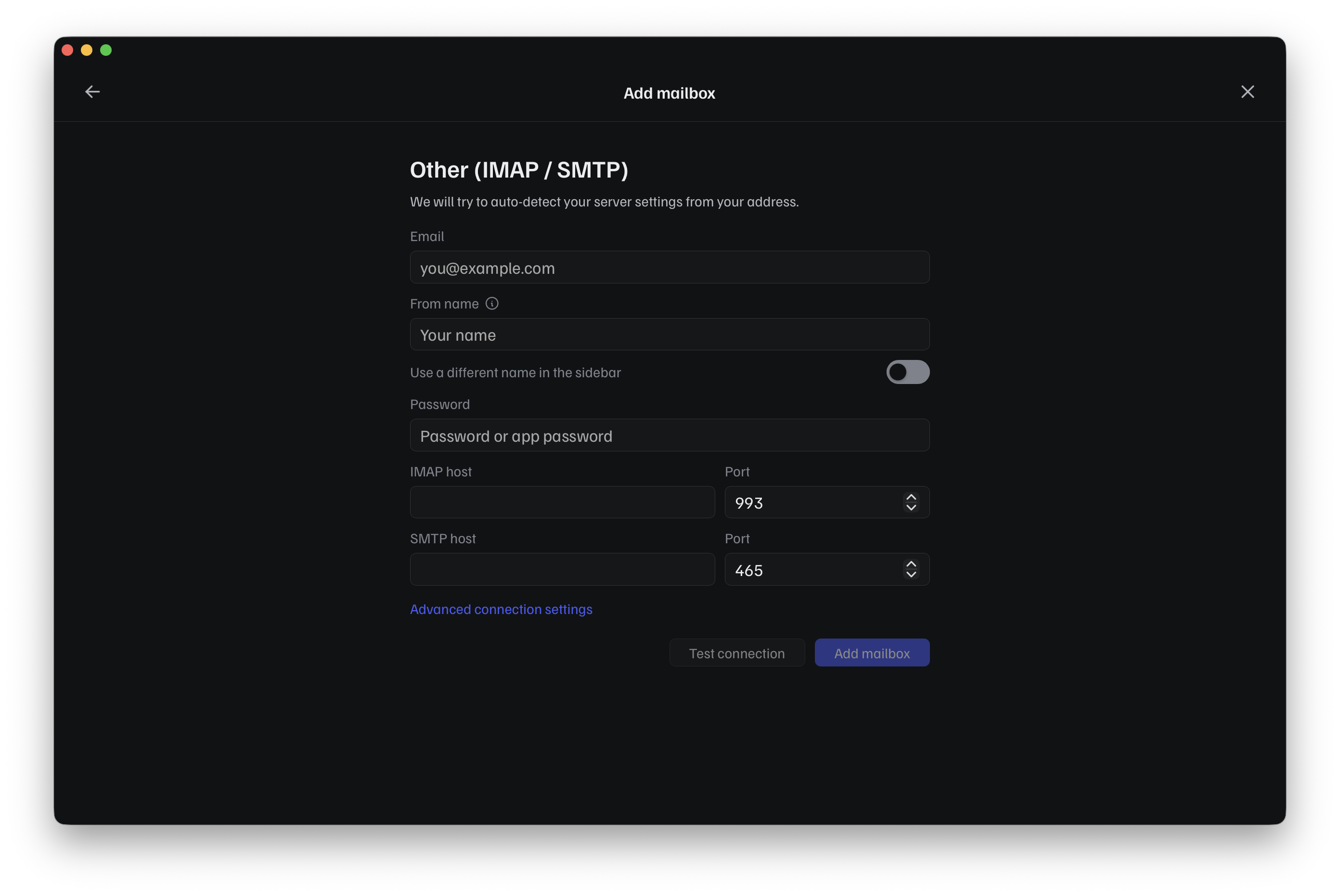
As soon as you type your email address, Pelton tries to guess your IMAP host and SMTP host from the domain. Treat this as a starting point, not a guarantee: the guess is based on common patterns (like
imap.example.comfor[email protected]), so it can easily be wrong for smaller or self-hosted providers. Check the guessed hostnames against what you gathered above, and correct them by hand if they don't match. -
If your provider needs a non-default port, a STARTTLS connection, or a separate login username, expand Advanced connection settings:
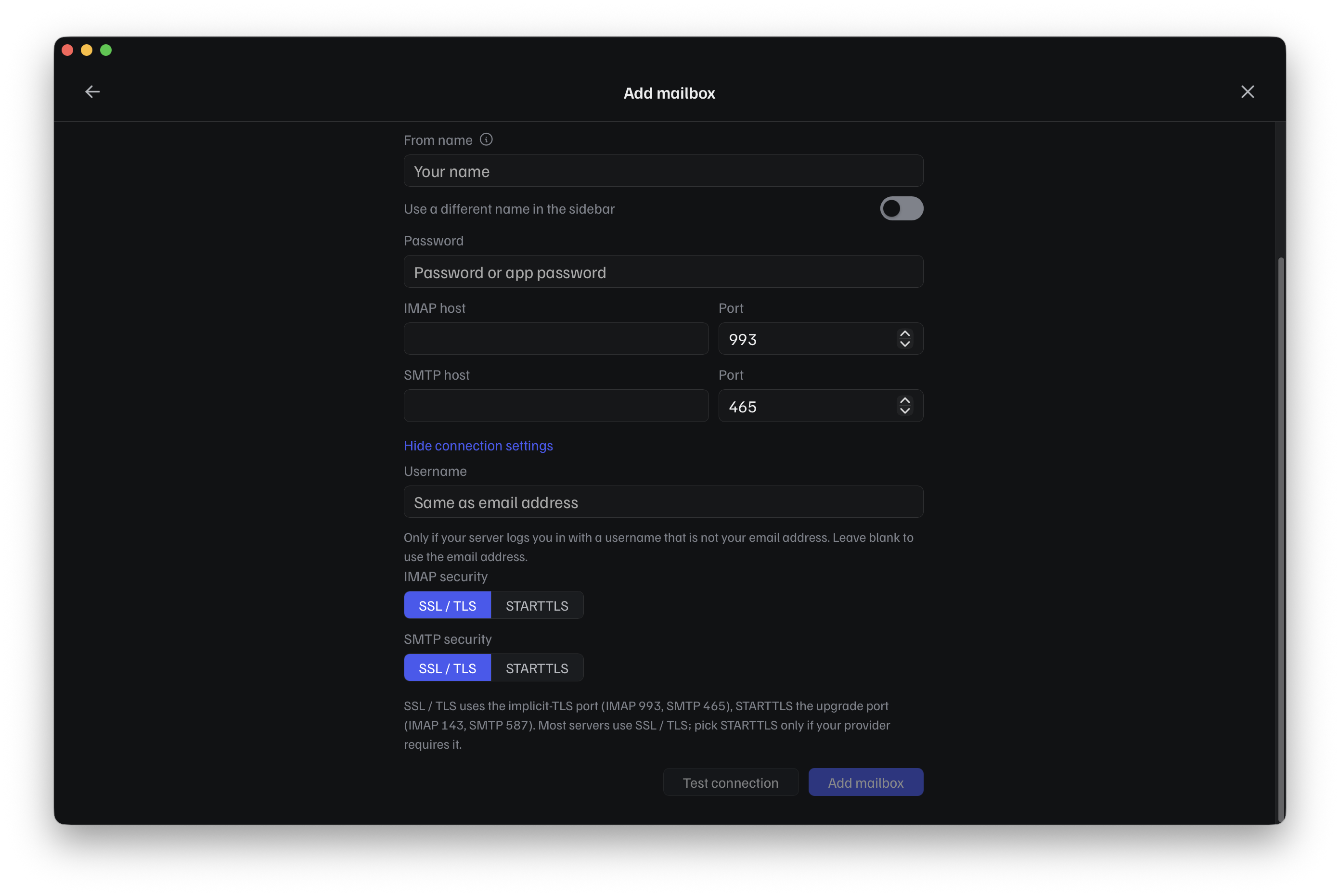
- Username only needs filling in if your server logs you in with something other than your email address. Leave it blank otherwise.
- IMAP/SMTP security: SSL/TLS uses the implicit-TLS port (IMAP
993, SMTP465); STARTTLS uses the upgrade port (IMAP143, SMTP587). Most providers use SSL/TLS, only switch to STARTTLS if yours requires it.
-
Click Test connection. Pelton needs a successful test before it lets you click Add mailbox, so if the button stays disabled, double-check the hostnames, ports, security setting, and password above.
-
Add the account in Pelton
Provider presets
Purelymail, Fastmail, and Yahoo Mail each get their own tile in the provider picker. They use the same IMAP/SMTP flow as above, but Pelton pre-fills the host and port for you, so you only need to enter your email, name, and password:
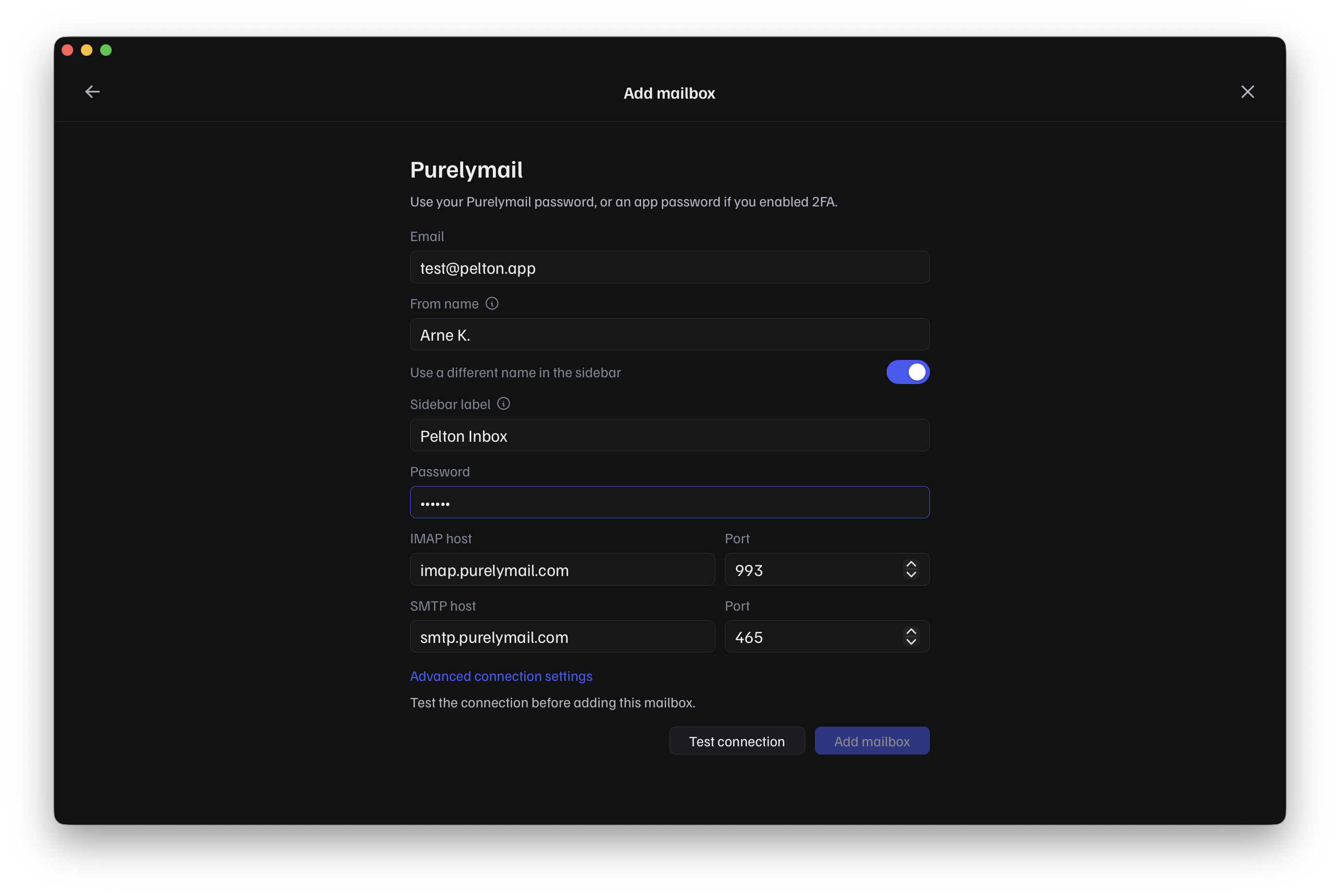
This example also shows Use a different name in the sidebar, which adds a Sidebar label field, useful if you want to tell accounts apart in the sidebar without changing what recipients see as your "from" name.
Testing it
TODO: how to confirm it worked (e.g. send a test email to yourself, check that existing mail syncs in).
- Test sending and receiving
Troubleshooting
Wrong port or encryption setting
SSL/TLS and STARTTLS use different ports (see
Adding the account above): SSL/TLS is the
implicit-TLS port (IMAP 993, SMTP 465), STARTTLS is the upgrade port
(IMAP 143, SMTP 587). Mismatching them is the single most common
cause of a failed test connection.
The symptom is usually a timeout or a generic "couldn't connect" error rather than anything mentioning encryption, since the client and server are speaking past each other rather than actively refusing the connection. If your provider's documentation lists both a port and an encryption method, make sure the pair you entered in Pelton actually matches one of the pairs they list, don't mix a SSL/TLS port with STARTTLS or vice versa.
Your provider needs an app password
Once two-factor authentication is on, most providers stop accepting your normal account password for IMAP/SMTP and expect a separate, app-specific password instead. This is common with Gmail, Yahoo, and iCloud, and Pelton's dedicated flows for those handle it for you; for a generic IMAP/SMTP account you have to generate the app password yourself.
Look in your provider's account security settings for something called "app passwords", "app-specific passwords", or "third-party app access". Generate one there and use it in Pelton's Password field instead of your normal login password.
Your provider blocks third-party mail apps
Some providers disable IMAP/SMTP access by default and require you to turn it on yourself in your account settings before any third-party client, Pelton included, can connect. A smaller number of free consumer providers don't allow third-party access at all, no matter what you enable.
Check your provider's account settings, or search their support site for "IMAP access" or "third-party app access", to confirm it's actually turned on for your account before assuming the settings in Pelton are wrong.
A firewall or VPN is blocking the connection
Corporate networks and some VPNs block outbound IMAP/SMTP ports
(993, 465, 143, 587) as a matter of policy, which looks
identical to a wrong host or port from inside Pelton: the test
connection just times out. If you're on a work network, a school
network, or a restrictive VPN, try again on a different network (or
with the VPN off) before troubleshooting anything else. If it works
elsewhere, the network was the problem, ask whoever manages it to allow
the relevant ports.
Still stuck? See Support.
Need help?
See Support.