iCloud
Checklist
- Turn on two-factor authentication
- Create an app-specific password
- Add the account in Pelton
Two-factor authentication is required
Apple only lets you create app-specific passwords once two-factor authentication is turned on for your Apple ID. If you haven't enabled it yet, turn it on in your Apple ID settings first, you'll be asked to confirm sign-in on a trusted device or phone number in addition to your password from then on.
You must use an app-specific password, not your Apple ID password
Apple rejects your normal Apple ID password for IMAP/SMTP mail apps. Pelton's Password field needs an app-specific password instead, generated separately for Pelton.
- Turn on two-factor authentication
Adding the account
-
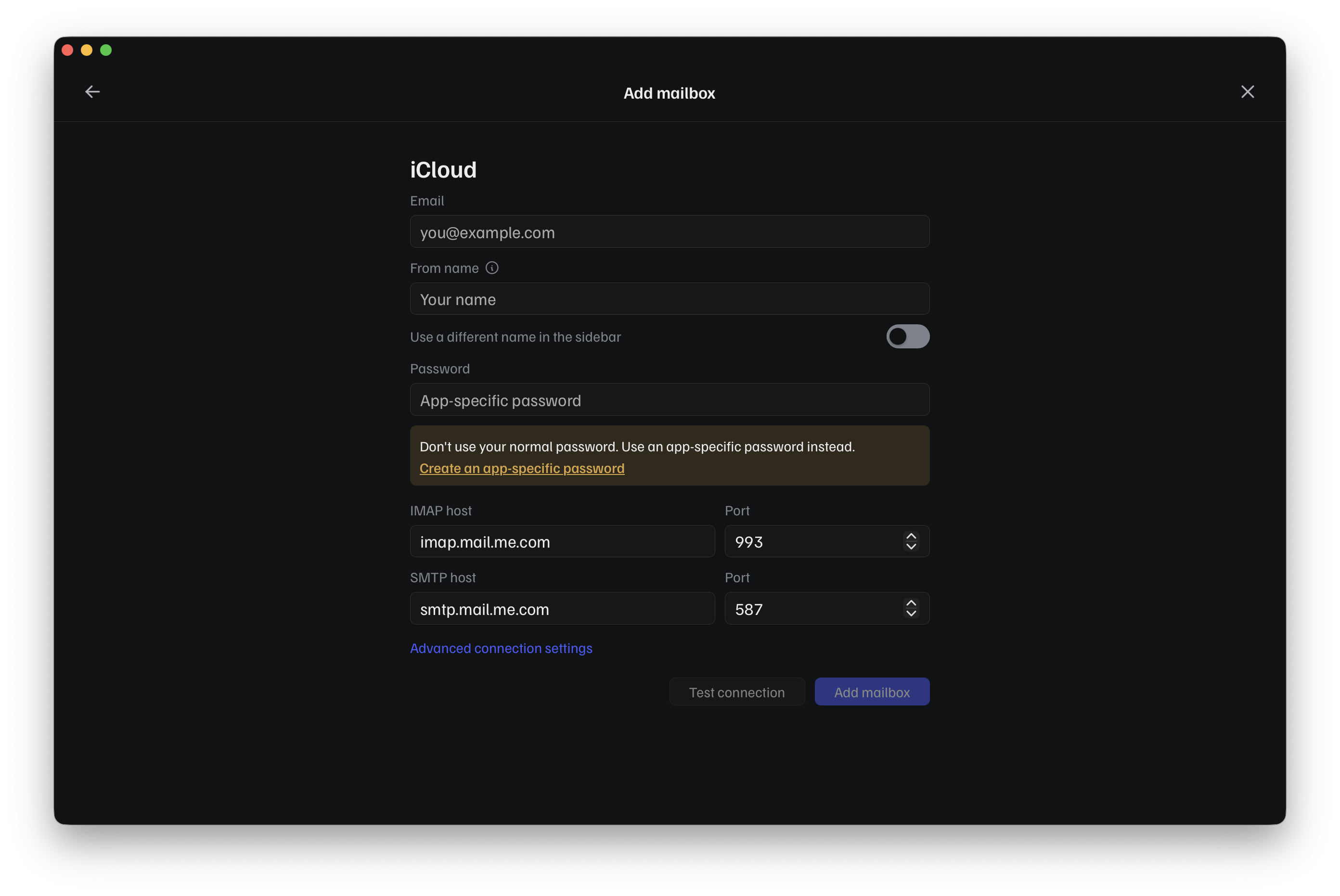
Open Add mailbox, choose Add a mailbox, then pick iCloud from the provider list. Fill in your Email and From name. Pelton already knows iCloud's IMAP/SMTP hosts, so you won't need to touch those.
-
Click Create an app-specific password. This opens account.apple.com; sign in with your Apple ID if you aren't already.
-
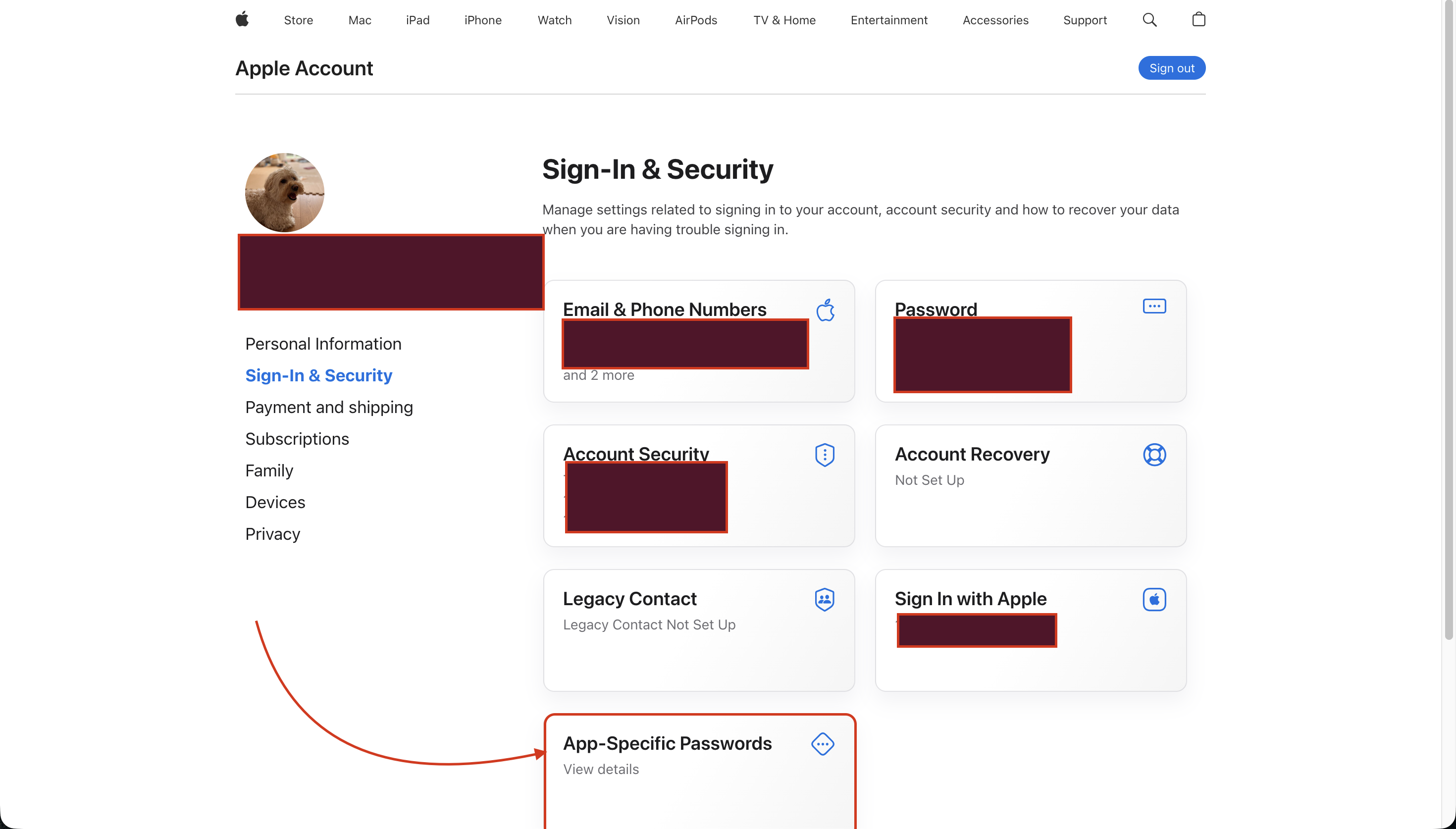
Signing in lands you on Sign-In & Security. Scroll down and open App-Specific Passwords.
-
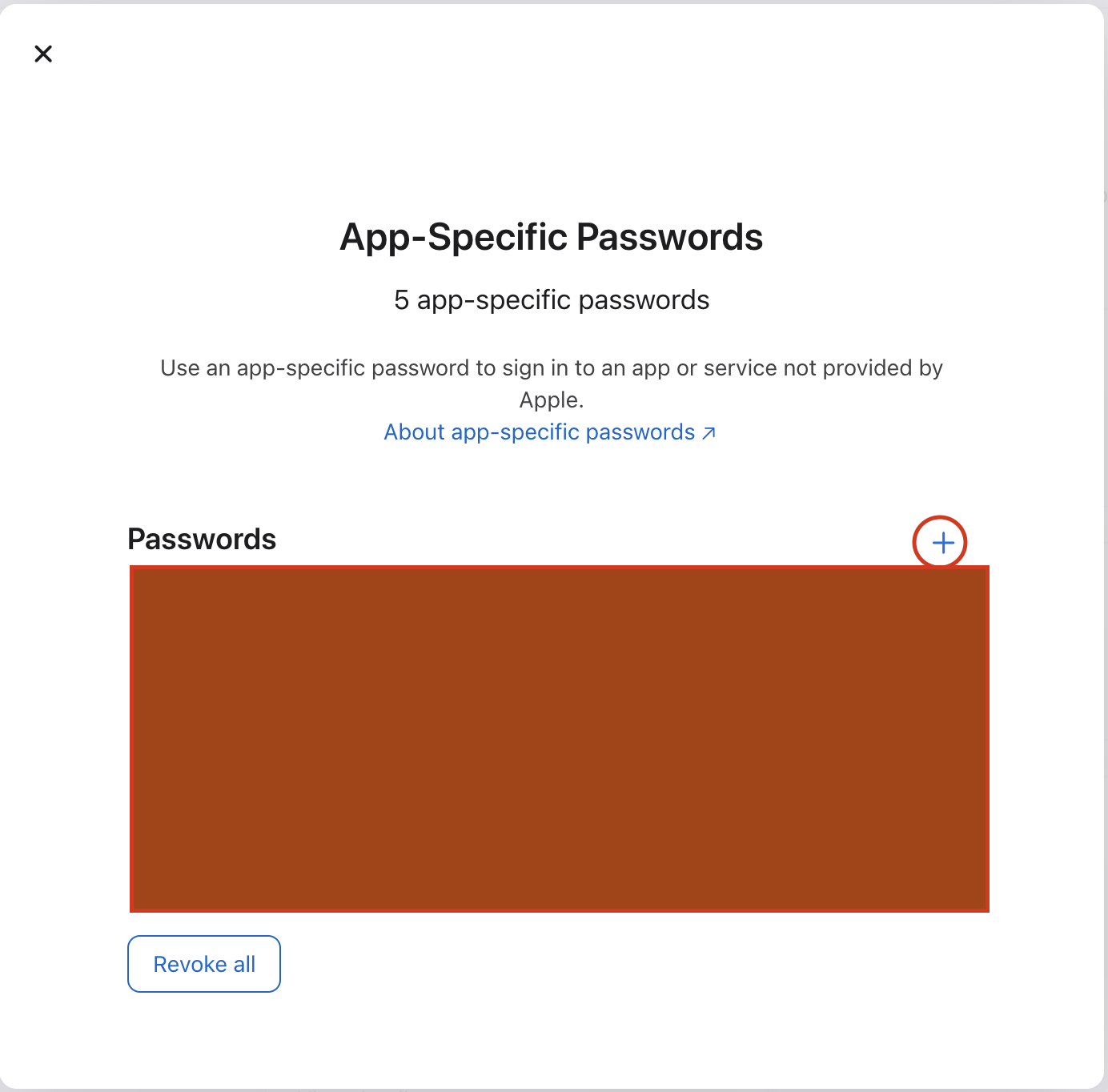
Click the + next to Passwords.
-
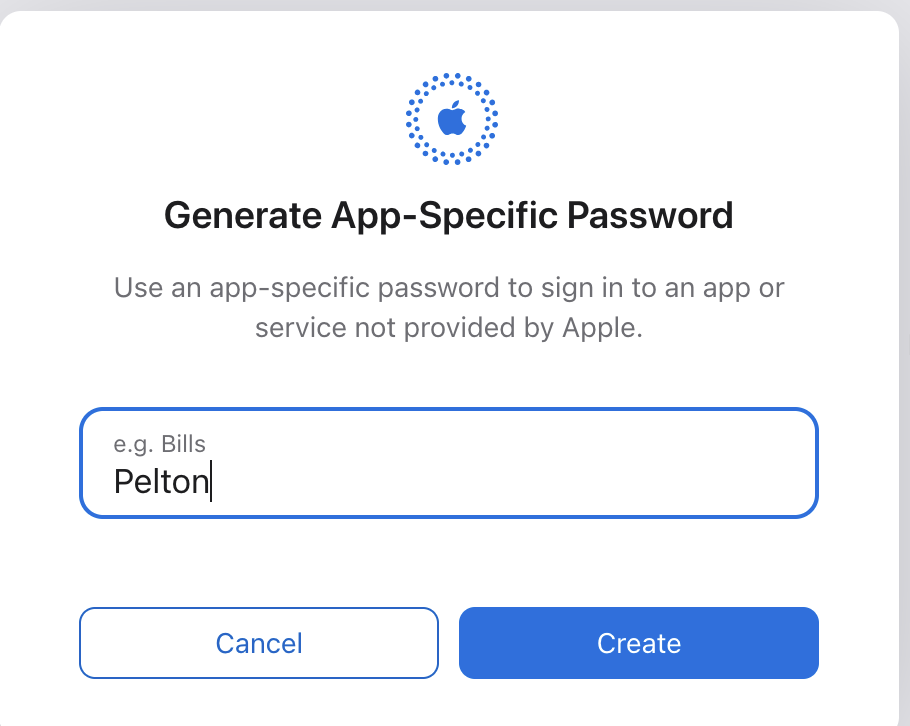
Type a name for it (for example "Pelton") and click Create.
-
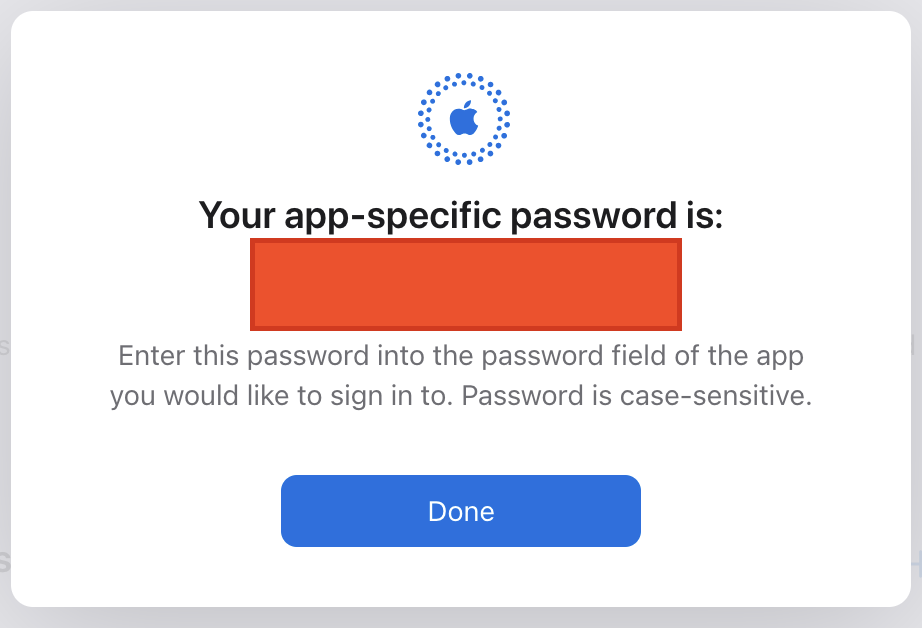
Apple shows you the generated password. Copy it, this is what goes in Pelton's Password field, then click Done.
-
Back in Pelton, paste the app-specific password into the Password field, click Test connection, then Add mailbox.
-
Create an app-specific password
- Add the account in Pelton
Need help?
See Support.