Installing a theme
A theme file has the extension .peltontheme, a zip container holding a manifest.json and whatever it references.
Checklist
- Get a
.peltonthemefile, from themes.pelton.app or someone who sent it to you - Import it in Settings > Themes
- Review the preview before confirming
- Apply it
Steps
- Open Settings > Themes.
- Click Import theme... and pick the
.peltonthemefile. - Pelton shows you exactly what the theme changes before installing anything: its metadata, every CSS file it ships (read-only, expandable), and a warning if it references anything outside the file itself. Nothing is installed until you confirm.
- Once installed, click its card in the list to apply it.
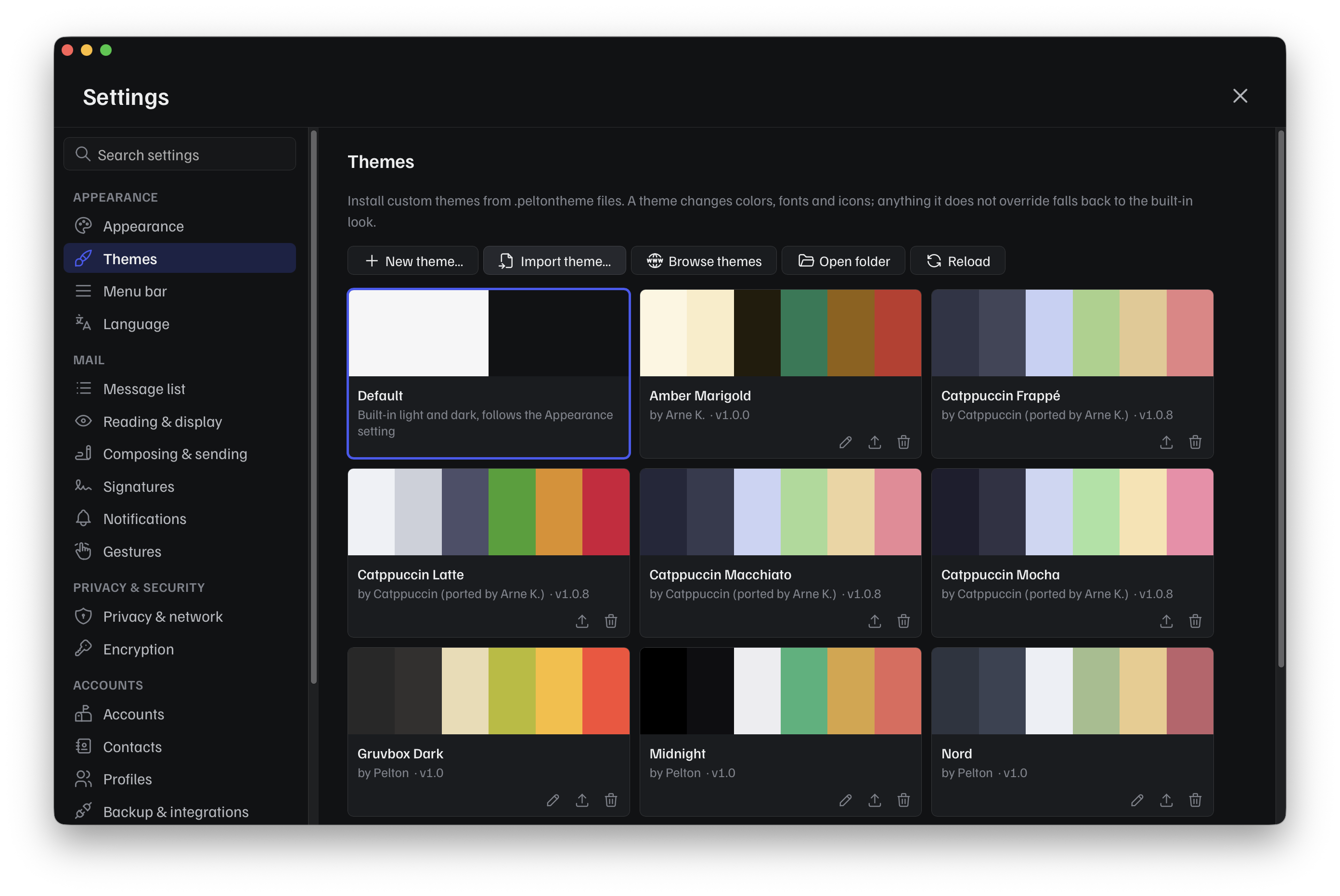
Browse themes opens the community gallery at themes.pelton.app in your browser, download a theme there and import it the same way.
Themes are community-submitted
Pelton checks every submission to the gallery, but treat a downloaded .peltontheme file like anything else you download from the internet, install it at your own risk. The sandboxing described in Themes limits what a theme can do, it isn't a guarantee nothing was missed.
Where themes live
Installed themes (including the six bundled defaults: gruvbox-dark, midnight, nord, paper, solarized-dark, solarized-light) are stored as .peltontheme files in a folder next to Pelton's database:
Settings > Themes > Open folder takes you straight there. This is also where you'd manually drop a theme file if you don't want to use the import dialog, use Reload afterward to pick it up.
Need help?
See Support.