Gmail
Checklist
- Turn on 2-Step Verification
- Create an app-specific password
- Add the account in Pelton
2-Step Verification is required
Google only lets you create app-specific passwords once 2-Step Verification (2FA) is turned on for your account. If you haven't enabled it yet, go to your Google Account security settings and turn on 2-Step Verification first, you'll be asked to confirm sign-in with your phone or an authenticator app in addition to your password from then on.
You must use an app-specific password, not your Google password
Google rejects your normal account password for mail apps. Pelton's Password field needs an app-specific password instead, generated separately for Pelton.
- Turn on 2-Step Verification
Adding the account
-
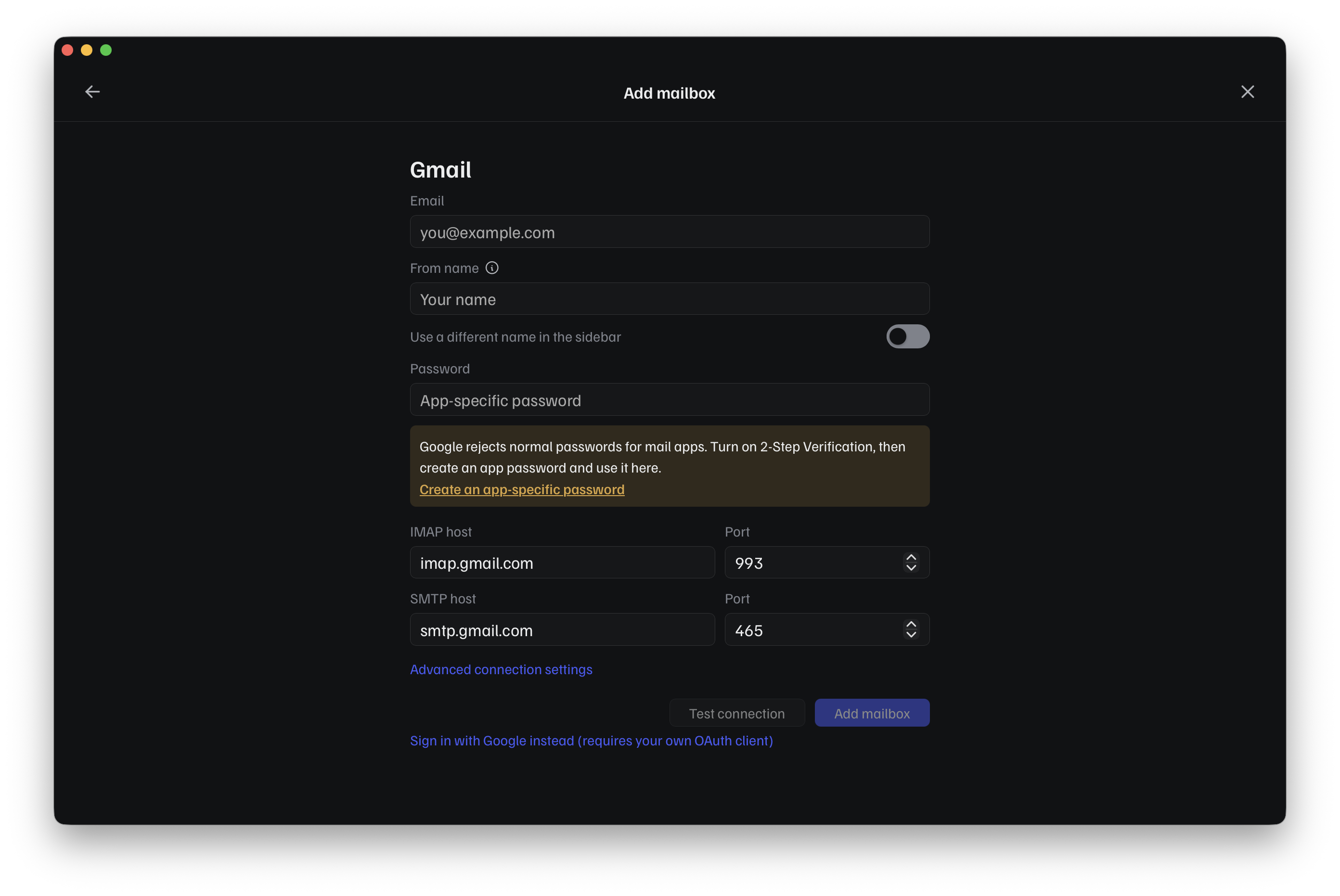
Open Add mailbox, choose Add a mailbox, then pick Gmail from the provider list. Fill in your Email and From name. Pelton already knows Gmail's IMAP/SMTP hosts, so you won't need to touch those.
-
Click Create an app-specific password under the Password field. This opens myaccount.google.com/apppasswords.
-
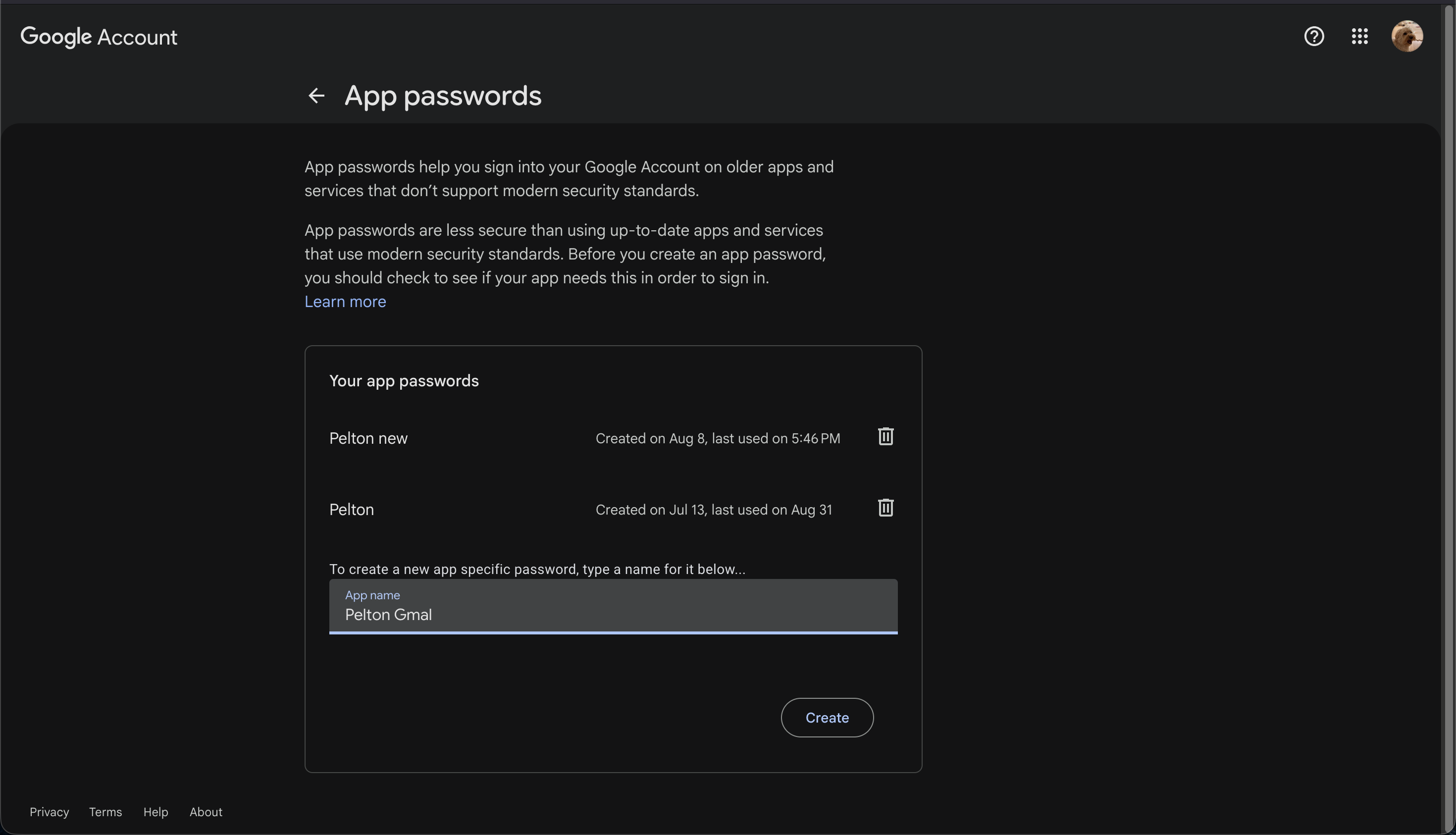
On Google's App passwords page, type a name for it (for example "Pelton") and click Create.
-
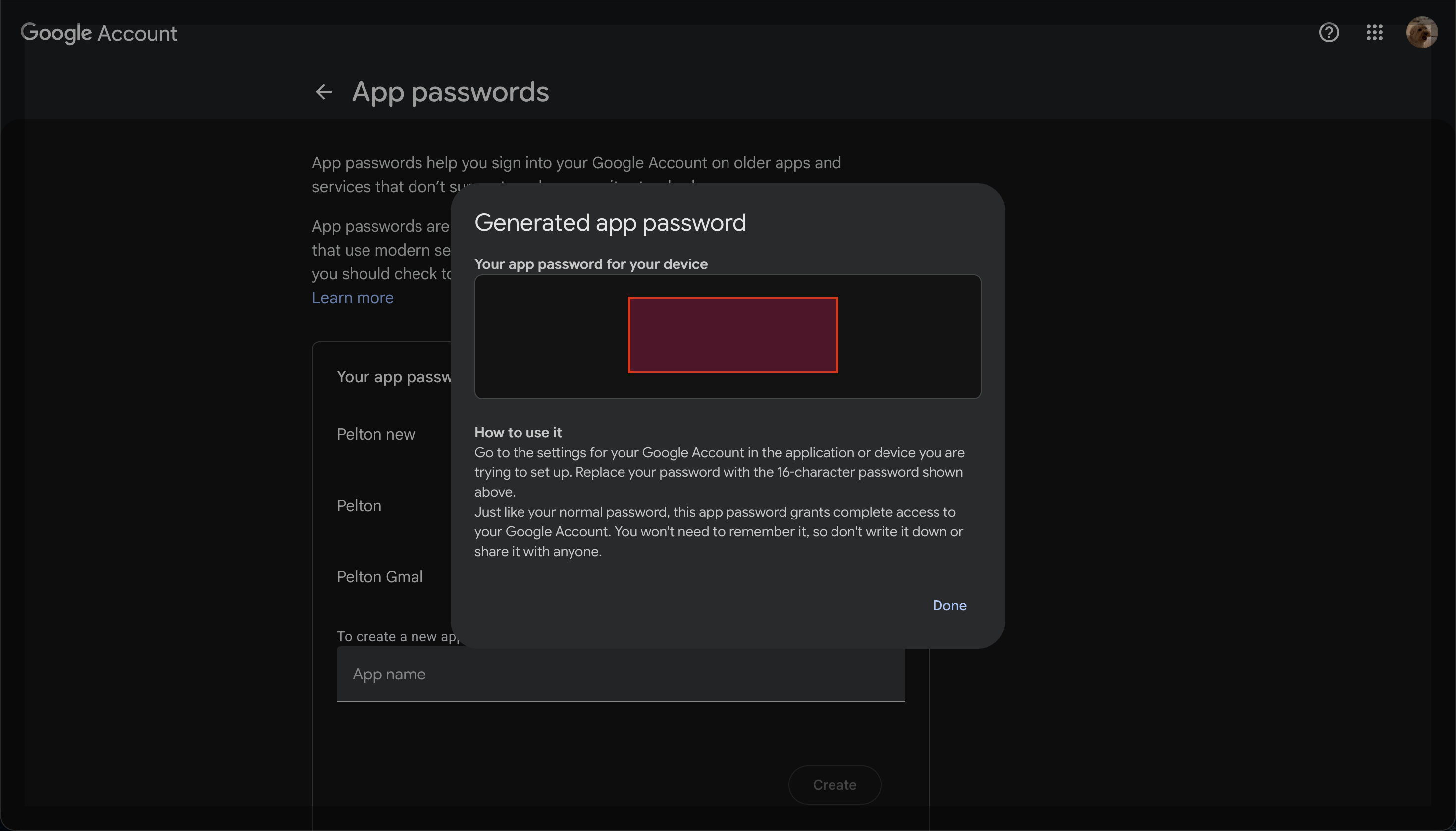
Google shows you a 16-character password. Copy it, this is what goes in Pelton's Password field, not your normal Google password. You won't need to remember it yourself; Google won't show it to you again after you close this dialog.
-
Back in Pelton, paste the app password into the Password field, click Test connection, then Add mailbox.
-
Create an app-specific password
- Add the account in Pelton
About "Sign in with Google instead"
The Gmail form also has a Sign in with Google instead link for signing in with OAuth 2.0 rather than an app password. It isn't recommended: Pelton doesn't ship a Google-verified OAuth client, so using it means registering your own OAuth client in Google Cloud Console yourself, which is more setup for no real benefit over an app password for most people. Stick with the app password flow above unless you specifically need OAuth.
Need help?
See Support.